PC Store Together Controls and Interactions
Move the shop floor, drive the counter PC, and work the benches without fighting the camera.
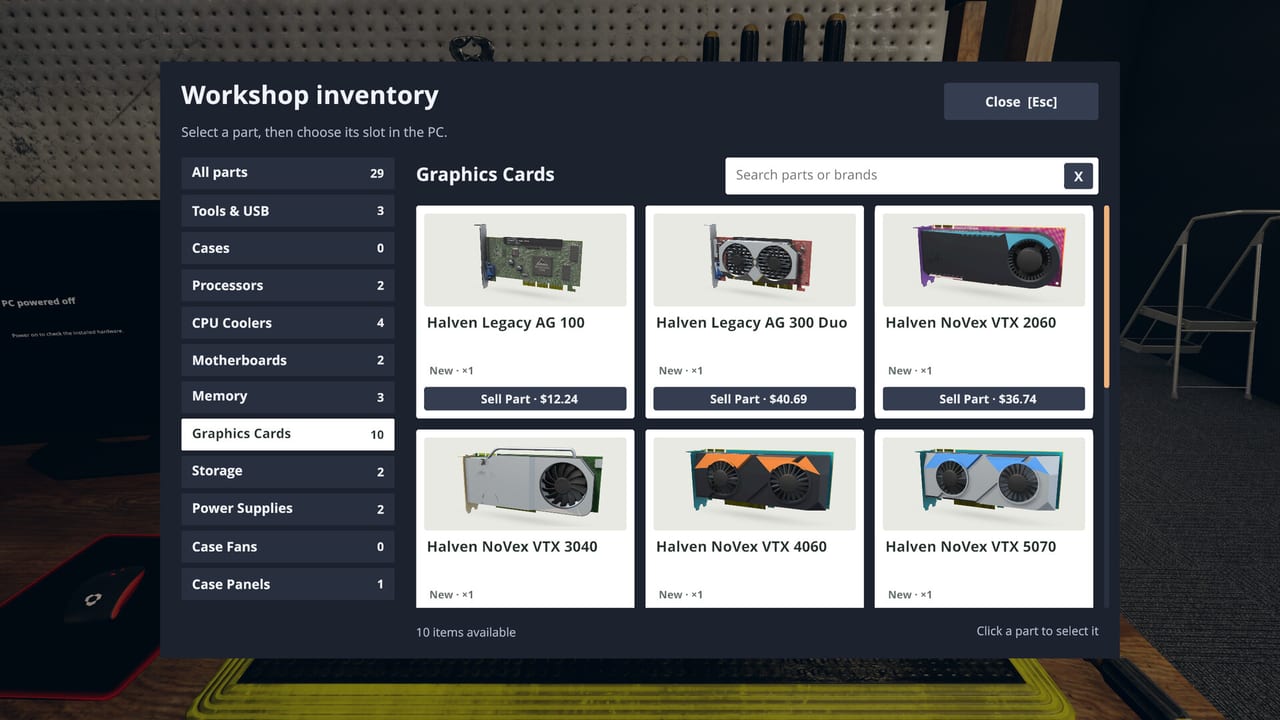
Comfortable controls are what let you focus on sockets and customers instead of the camera. PC Store Together is a first-person PC shop simulator from Sykes Games and Nightmare Studios — think Unity-style FPS movement wrapped around shelves, a shop computer, and detailed workbenches. This page documents the practical control clusters you will use every session on the Steam Windows build (app 4990940). Bindings can vary slightly after hotfixes, so if a prompt on screen disagrees with this guide after a patch, trust the in-game prompt and check the Updates hub.
Pair this page with Getting Started on day one, and keep it pinned for friends joining through Co-op Multiplayer.
First-person movement and look
Expect standard FPS conventions on keyboard and mouse:
- WASD — move through the store floor, stock room, and behind the counter
- Mouse — look / aim at interactables
- Shift — sprint when you need to cross from shelves to bench during a rush
- Ctrl or C — crouch if a dropped screw or low shelf requires it in your build
- Space — jump only if the map allows; most shop traversal is grounded
- E or F — primary interact / use / pick up (confirm against the on-screen prompt)
- Tab or Esc — pause, settings, or leave an focused UI
Sensitivity matters more than people admit. Too high and seating RAM becomes a fight; too low and you cannot scan a busy counter. Set a sensitivity you could use in a tactical shooter, then lower it a notch for bench work.
Hold the interact key only when the game asks for a hold; tap for world pickups. Mis-holding is a common way to cancel a placement mid-build.
Shop computer and counter UI
The shop computer is where prices, tickets, and stock numbers live. Walk up to the counter terminal, press interact, and you will enter a cursor-driven UI:
- Mouse — navigate menus, confirm dialogs, adjust prices
- Scroll wheel — move through long inventory or ticket lists
- Enter — confirm when a button is focused
- Esc — back out without stranding a half-edited price if the UI supports cancel
Co-op rule: only the appointed pricing owner should live in this UI during rushes. Two people editing margins at once creates double discounts and arguments — see the role map in the co-op guide.
When a customer is waiting, finish the UI action, exit cleanly, then turn and speak. Leaving the cursor mode mid-sentence is how cashiers ignore a queue while staring at a spreadsheet.
Workbench and parts interactions
Build and repair benches add precision interactions on top of the FPS layer:
- Look at slot + interact — start placing the held part
- Mouse movement — nudge alignment while the part is ghosted
- Confirm bind — seat the part when the ghost turns valid
- Cancel bind — abort a bad approach before you force a wrong socket
- Rotate part (often mouse button or R) — orient coolers, sticks, and connectors
- Drop / place on table — stage parts without installing them yet
Follow the canonical order from How to Build a PC: CPU → cooler → RAM → motherboard → GPU/storage → PSU → close panel → power on. The controls do not save you from a wrong socket; they only express your intent. If the ghost never validates, you likely have a compatibility problem, not a keybind problem.
For repairs, the same grabs apply, but you will more often remove parts. Use the diagnose sequence in How to Diagnose and Repair so you are not unbound-hotkeying a GPU out before you tested power.
Power-on and panel habits
Closing the side panel is an interaction, not a cutscene skip. Approach the panel, interact to close, then interact with the power switch. Players who mash power with the case open train a bad loop the sim can punish. In co-op, the technician who owns the chassis calls “panel closed, powering on” so nobody else yanks a cable at the same frame.
Controller support (Steam)
Steam lists controller support for many sim seats, and PC Store Together is expected to accept a gamepad for movement and basic interactions. Practical guidance:
- Left stick — move
- Right stick — look
- Face button (A/Cross) — interact / confirm
- B/Circle — cancel / back
- Y/Triangle or X/Square — context actions such as rotate when prompted
- LB/RB or L1/R1 — bump through toolbar or held-item slots if the build exposes them
- Start — menu
Fine part alignment is still easier on mouse for most players. A strong co-op pattern is keyboard technician + controller runner: the runner sprints shelves with a pad while the builder keeps mouse precision on the bench. Confirm your exact layout in the in-game settings and Steam Input if a prompt feels off after a hotfix.
If a friend only owns a controller, have them take cashier or runner first, not the microscopic cooler mount, until they remap comfort.
Settings worth changing before a long session
- Mouse sensitivity separate from look smoothing if available
- Fullscreen / borderless for stable alt-tab to Discord overlays
- Audio levels so customer VO lines do not drown teammate calls
- Key rebinds for interact if you habitually use a different FPS layout
Stay within minimum hardware expectations (Windows 10 64-bit, i5 2.5 GHz class, 8 GB RAM, GTX 1060 / RX 6600 XT class, DX11, ~2 GB storage) so input latency is not actually a frame-time problem in disguise.
Accessibility and comfort tips
- Take breaks during four-hour Discord grind sessions; bench work is repetitive on the wrists.
- Increase UI scale if the shop computer text feels small on 1440p or 4K.
- Colorblind players should rely on label text and socket names, not only LED colors on parts, when the sim uses status lights.
- Motion-sensitive players can lower look acceleration and avoid constant sprint-strafing in tiny aisles.
Practice drills for controls fluency
- Walk a full lap: door → shelves → build bench → repair → counter → shop PC → exit UI.
- Pick up, rotate, and reseat a RAM kit until confirm/cancel is muscle memory.
- Enter the shop computer, change a price, cancel once, commit once — learn the difference.
- In a private lobby, practice panel close + power on ten times without rushing.
- If you use a controller, remap interact to the face button you never miss under stress.
Troubleshooting “controls feel broken”
- Cannot interact: You are too far away, on the wrong angle, or still in cursor UI — press Esc.
- Part will not seat: Compatibility or rotation issue; revisit the build guide.
- Sticky mouse in menus: Alt-tab focus loss; toggle borderless and click back into the window.
- Co-op desync on picks: Wait for host authority; do not spam interact on the same part.
- After a patch: Re-open settings — hotfixes on launch day already proved UI can shift quickly.
Related pages
- Guides Hub — full tutorial map
- Getting Started — when to learn controls versus money priorities
- How to Build a PC — what you are trying to do at the bench
- How to Diagnose and Repair — remove-and-replace interactions with purpose
- Co-op Multiplayer — who should hold the mouse versus the pad
- Links Hub — Steam page for overlay and controller config links
Learn movement, master the shop PC, then slow down at the bench. Good inputs make every other guide on this wiki easier to execute when the queue hits the counter.
Frequently Asked Questions
Quick answers to the most common questions.
What are the default movement controls in PC Store Together?
Use WASD to move, the mouse to look, Shift to sprint, and the on-screen interact key (commonly E or F) to use objects. Always defer to the in-game prompt if a patch remaps a bind.
How do I use the shop computer?
Walk up to the counter terminal, press interact to enter the cursor UI, then navigate with the mouse and confirm changes carefully. In co-op, only one player should edit prices during a rush.
Does PC Store Together support a controller?
Steam-side controller support is expected for movement and basic interactions. Fine part alignment is usually easier with a mouse; many co-op teams put controller users on runner or cashier roles.
Why can I not seat a part even though I am pressing interact?
The ghost placement may be rotated wrong, you may be aiming at the wrong slot, or the part may be incompatible. Cancel, rotate, verify socket or slot match, then confirm again.
Should I close the PC panel before powering on?
Yes. Closing the panel is part of the interaction sequence. Powering on with an open case is a bad habit the simulation can punish — call it out in co-op before you hit the switch.